Using inMotion Track
Installing the App
inMotion Track is available free for iOS and Android.


Once installed, launch the app from your home screen by tapping the inMotion icon.
Once installed, launch the app from your home screen by tapping the inMotion icon.
Launch the App
On first launch you'll be asked to approve a couple of permissions the app needs to track your activities -
what to expect depends on your platform:
- Access to location - required to track your activities. We recommend choosing Allow While Using App. Your location is only recorded on the device once you've started or resumed an activity.
- Send notifications - optional. Notifications alert you to significant events, such as loss of connectivity to a device, and can be raised even while the app is in the background.
Logging In
Enter your inMotion email or username and password, then tap Login - this only
becomes available once both fields are filled in.
Don't have an account yet? Tap Signup. Forgotten your password? Tap Reset. Both take you to inMotion Cloud, so you'll need an internet connection for either.
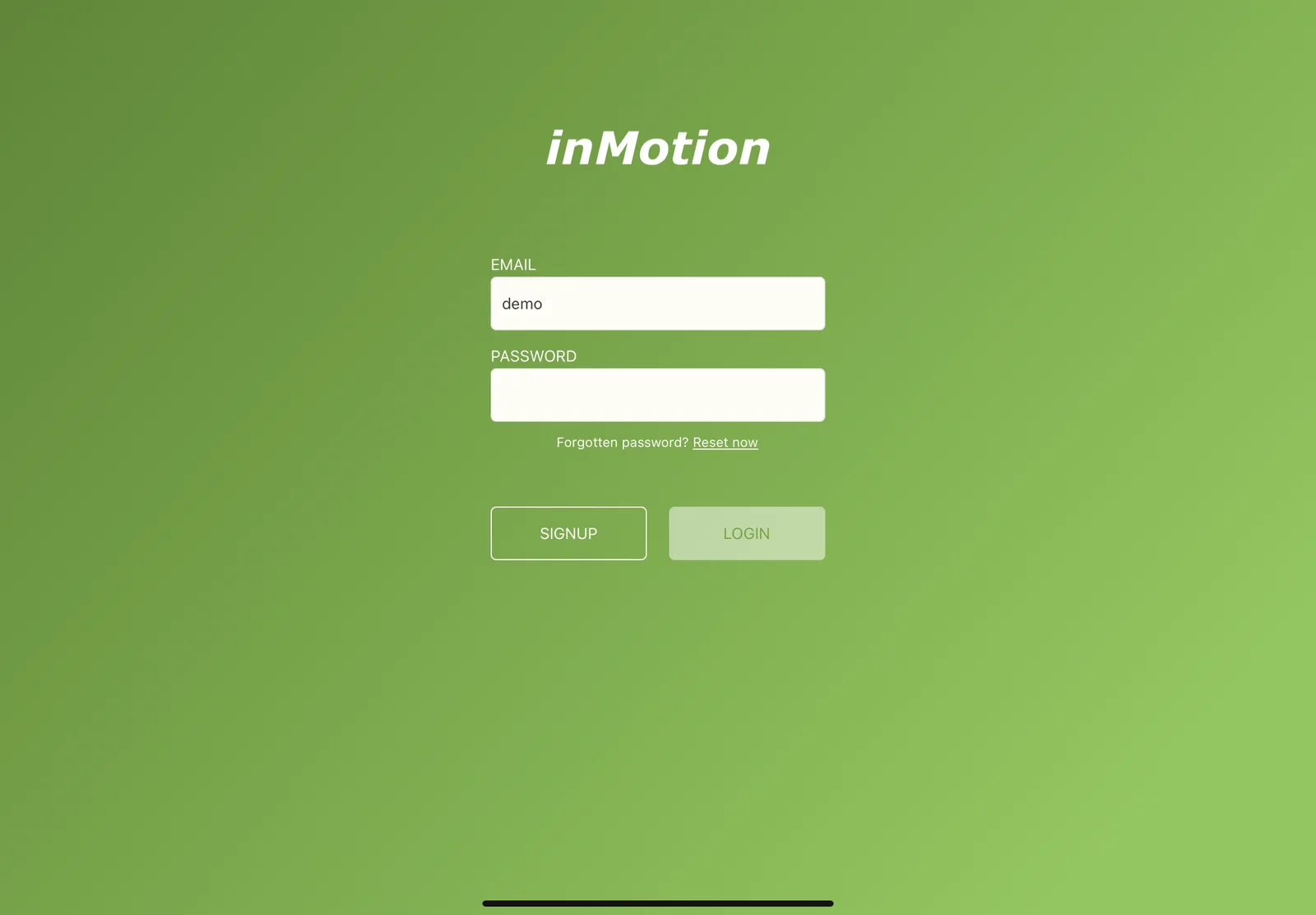
Don't have an account yet? Tap Signup. Forgotten your password? Tap Reset. Both take you to inMotion Cloud, so you'll need an internet connection for either.
Navigating Around the App
Use the tab bar along the bottom of the screen to move between the five areas of the app:
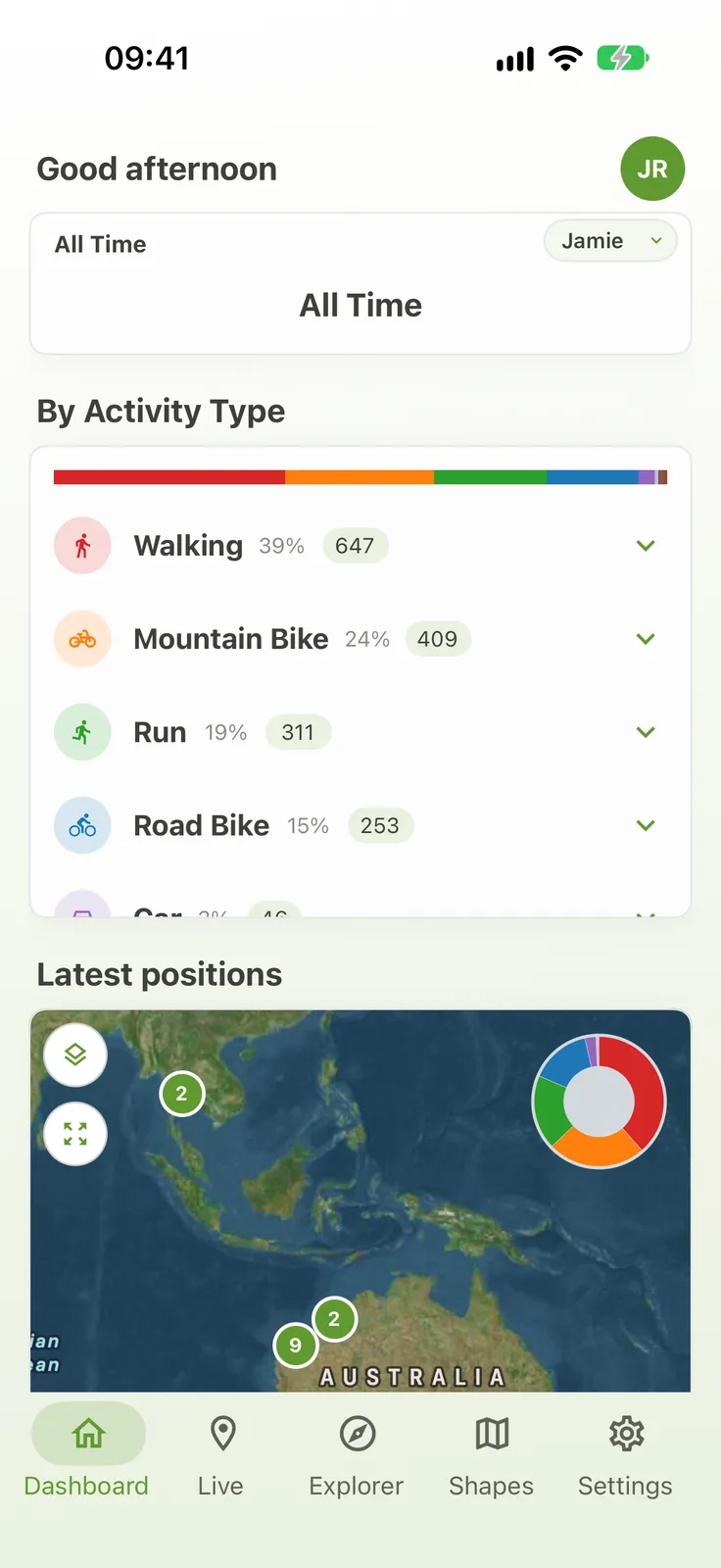
- Dashboard - a summary of your recorded activities for a period, by activity type, with a map of your latest positions.
- Live - record and monitor an activity.
- Explorer - browse your recorded tracks and sites on a map, and review them over time.
- Shapes - download and manage the maps, routes and areas from your inMotion Cloud account.
- Settings - your account, syncing, units, appearance and storage.
Reviewing Your Activity on the Dashboard
Available onFreeSharedDedicatedSelf-Hosted
The Dashboard summarises what you have recorded. Use the date selector to move between all time, a year, a quarter or a
month, and the account selector to switch between accounts you have access to. Totals such as distance,
duration, altitude, gradient and speed are broken down by activity type, and a map shows your latest positions.
Exploring Tracks and Sites
Available onFreeSharedDedicatedSelf-Hosted
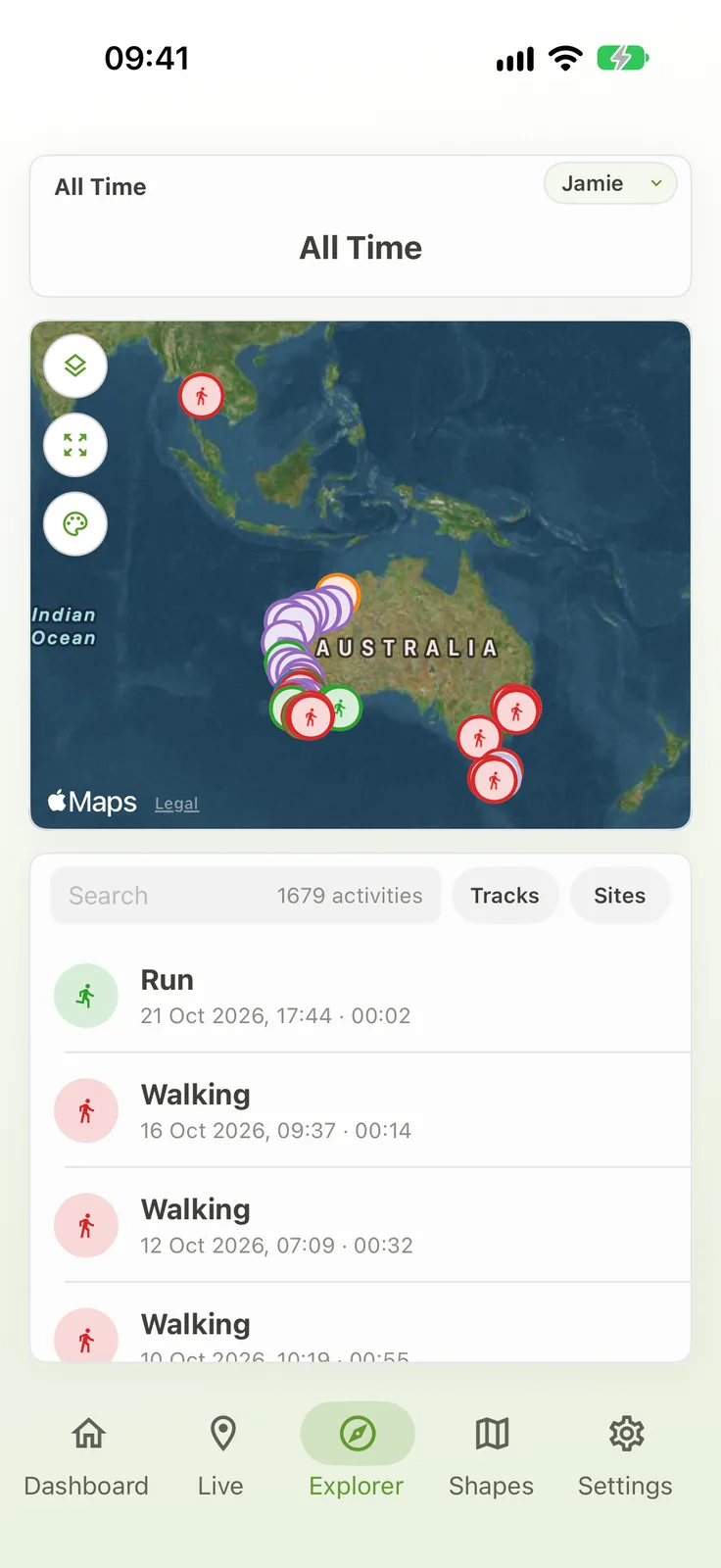
Explorer shows your recorded activities on a map, with a list beneath it. Search the list, or filter it to
Tracks or Sites, and use the date and account selectors at the top to choose what is shown.
Select a track or site to see its details and charts, and move through its history with the time window.
Recording an Activity
Available onFreeSharedDedicatedSelf-Hosted
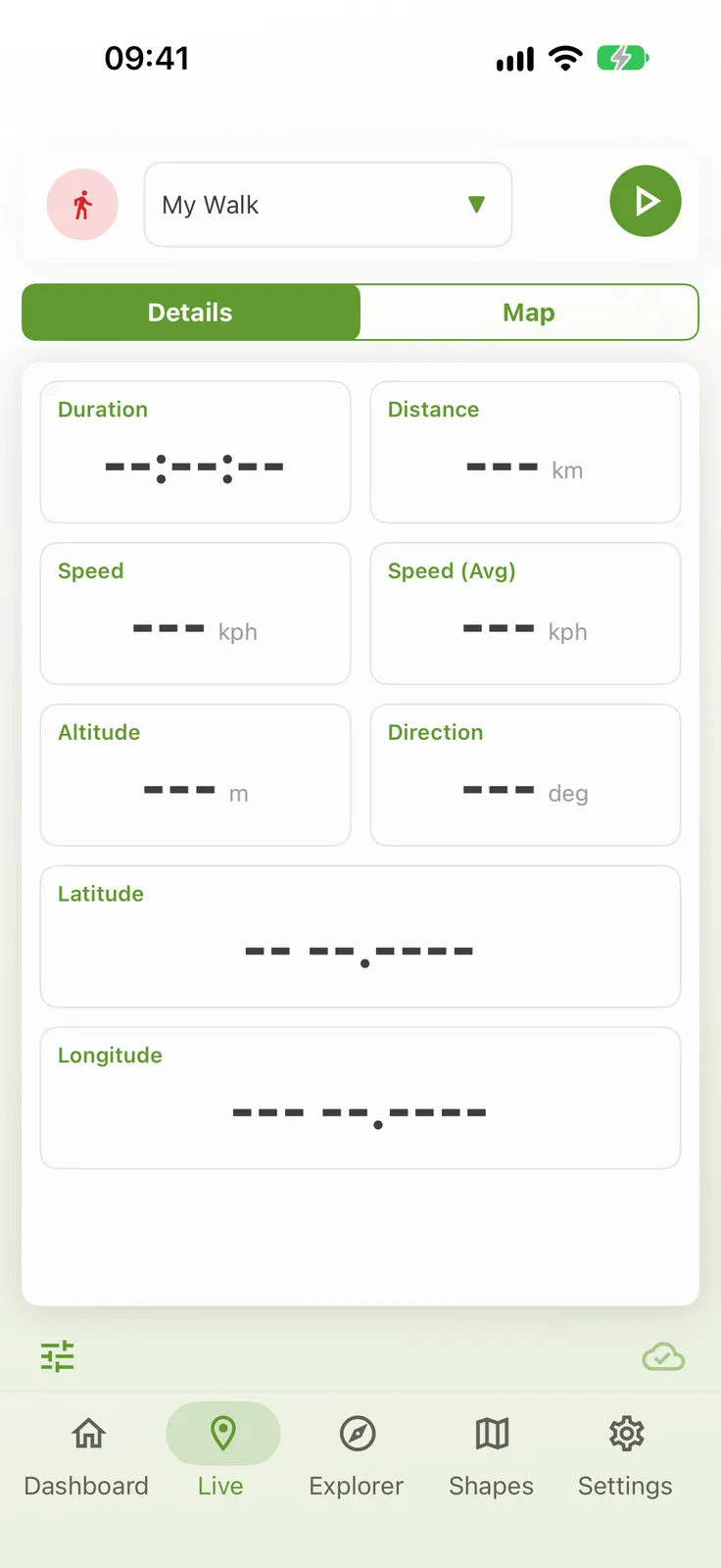
The Live screen records and monitors an activity based on a selected activity profile. Choose the profile from the
selector at the top, then tap the play button to start. While recording, Pause and Stop
buttons replace it, and Resume continues a paused activity.
While recording, the app captures your physical location and metrics, plus any sensor data configured for the activity profile - how often it updates depends on that profile's configuration.
If auto-sync is enabled in Settings, captured activity data is automatically uploaded to inMotion Cloud.
The fields shown depend on the activity profile - a spraying activity, for example, adds tank volume, spray rate, and area covered alongside the usual position and speed. Use the Map tab to switch to a live map of your route, with a heading and speed graph underneath.
Configuring an Activity Profile
Available onFreeSharedDedicatedSelf-Hosted
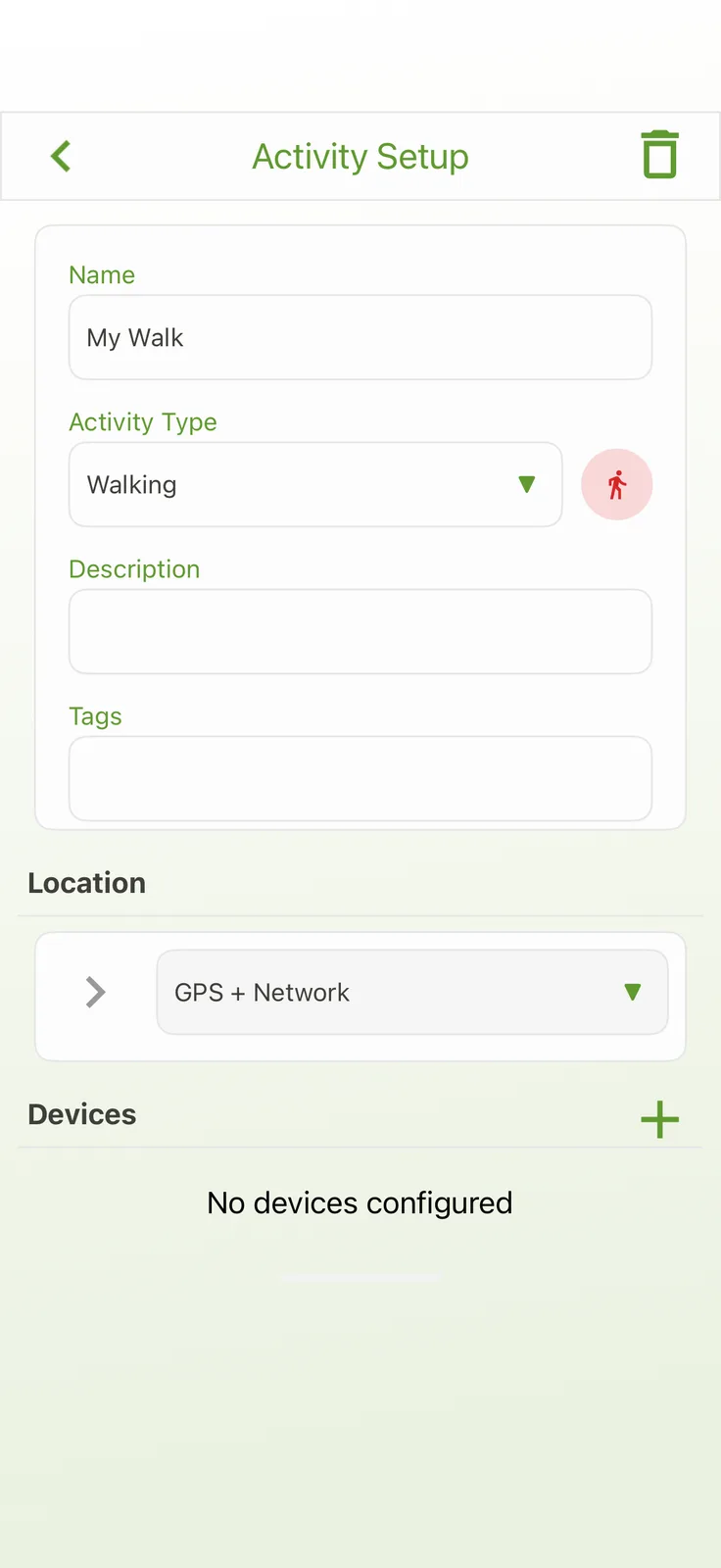
An activity profile defines the type of activity to be undertaken - how its location is captured, and which
sensors (for example heart rate, or an automatically calculated value like application rate) are associated
with it. Tap the sliders button at the bottom left of the Live screen (it is unavailable while recording) to
open the profile. From there you can rename it, add a description or free-text tag, choose the location
adapter, and add or delete sensors.
A new sensor can be added with the + button if the activity type supports it. Each sensor has a type, and may have configurable parameters. Sensors that need Bluetooth will prompt you to pair with the device the first time - the pairing is then remembered for that device.
Managing Shapes
Available onFreeSharedDedicatedSelf-Hosted
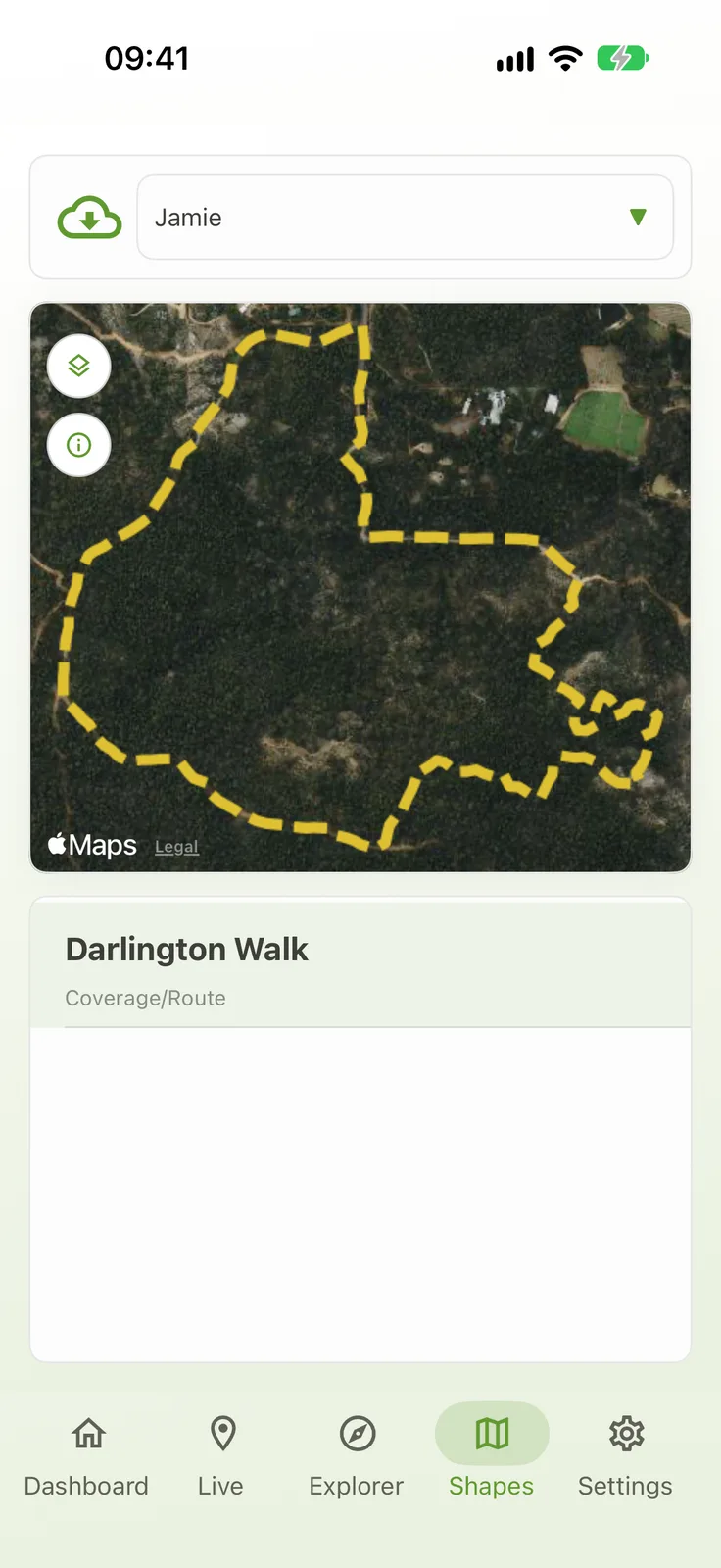
Maps and routes uploaded to your inMotion Cloud account can be downloaded to the
app for use as backdrops, route guides, or prescription maps that control an activity. Select an account, then use
the download button beside it to choose what to download.
Once downloaded, select a shape from the list, or from within the Live screen, and change its layer (satellite, hybrid, terrain, aerial, or hybrid aerial) as needed. Swipe left on a shape to remove it - removing it from the app doesn't remove it from inMotion Cloud, and vice versa.
Managing Settings
The Settings screen controls how the app and your activity data are managed:
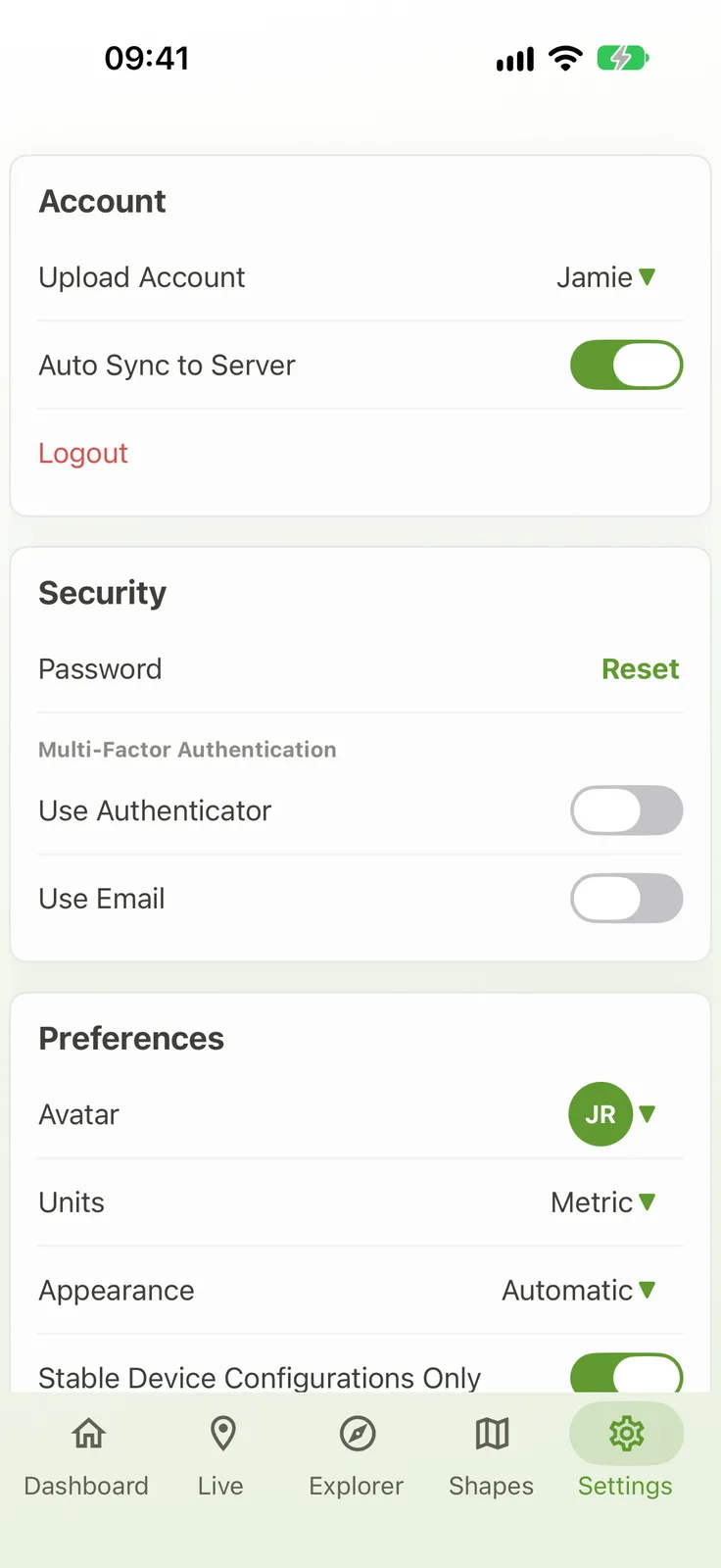
- Account - which account uploaded data is associated with (and switching to an alternative account), whether activities are automatically uploaded to inMotion Cloud, and logging out.
- Security - resetting your password, and multi-factor authentication with an authenticator app or an email code.
- Preferences - the unit system used to display all data (e.g. metric), the appearance (automatic, light or dark), and whether only stable device configurations are used.
- Storage - clearing saved activities that have not yet been uploaded, or downloaded shapes, and requesting a copy of all your data (which can take up to 10 working days).
About
The About screen shows information such as the app version, which is useful to have on hand when contacting the
inMotion Support Desk.